A Block Codes Rule allows you to prevent customers from using discount codes during a specific period. You can block all discount codes or specific codes based on configured rules, allow certain codes through a whitelist, and optionally deactivate other automatic discounts while the rule is active.
Follow these steps to create a Block Codes Rule in Ruleify.
Step 1: Open Block Code Rule
Open your Ruleify dashboard.
Under the Create Block Code Rule section, click Block Code Rule.
Step 2: Configure General Settings
2.1 Internal Title
Enter a title to identify the rule internally.
Example: Black Friday Blocker
2.2 Customer Rejection Message
Enter the message customers will see when they try to apply a blocked discount code.
Example: Discount codes are not accepted at this time.
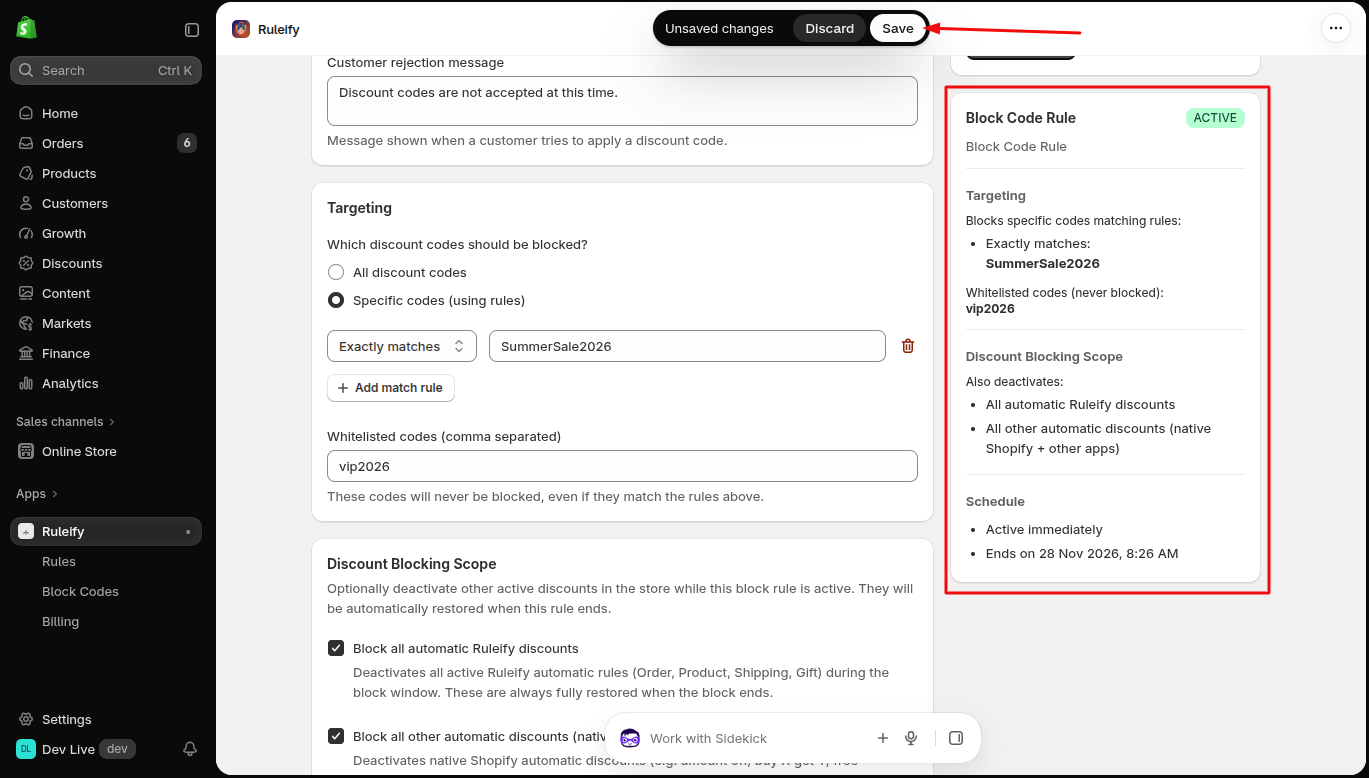
Step 3: Configure Targeting
Choose which discount codes should be blocked.
3.1 Discount Codes
All Discount Codes: Block all discount codes.
Specific Codes (Using Rules): Block discount codes that match the configured rules.
3.2 Whitelisted Codes
Enter the discount codes that should never be blocked, even if they match the configured blocking rules. Separate multiple codes with commas.
Example: VIP2024, STAFF, FREESHIP
Step 4: Configure Discount Blocking Scope
Choose whether other active automatic discounts should be deactivated while the Block Codes Rule is active.
4.1 Block All Automatic Ruleify Discounts
Enable this option to deactivate active automatic Ruleify discounts, including Order, Product, Shipping, and Gift discounts. These discounts are automatically restored when the blocking rule ends.
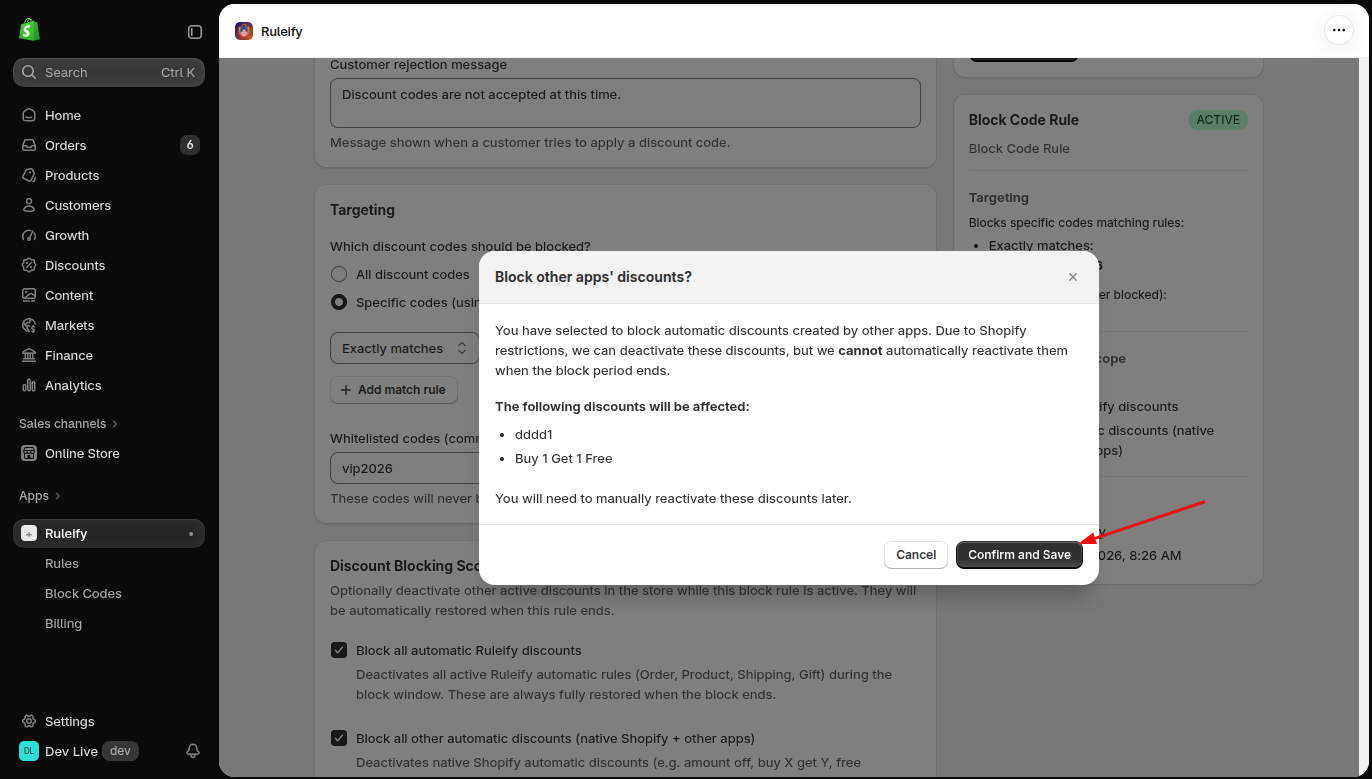
4.2 Block All Other Automatic Discounts (Native Shopify + Other Apps)
Enable this option to deactivate native Shopify automatic discounts and automatic discounts from other installed apps.
Step 5: Set the Schedule
Configure when the Block Codes Rule should become active and when it should end.
5.1 Start Date
Select the date when the rule should begin.
5.2 Start Time
Select the time when the rule should begin.
5.3 Set End Date
Enable this option and select an end date and time if the rule should stop at a specific time.
Example: Schedule the rule to block discount codes during a limited-time sale.
Step 6: Review and Save Your Rule
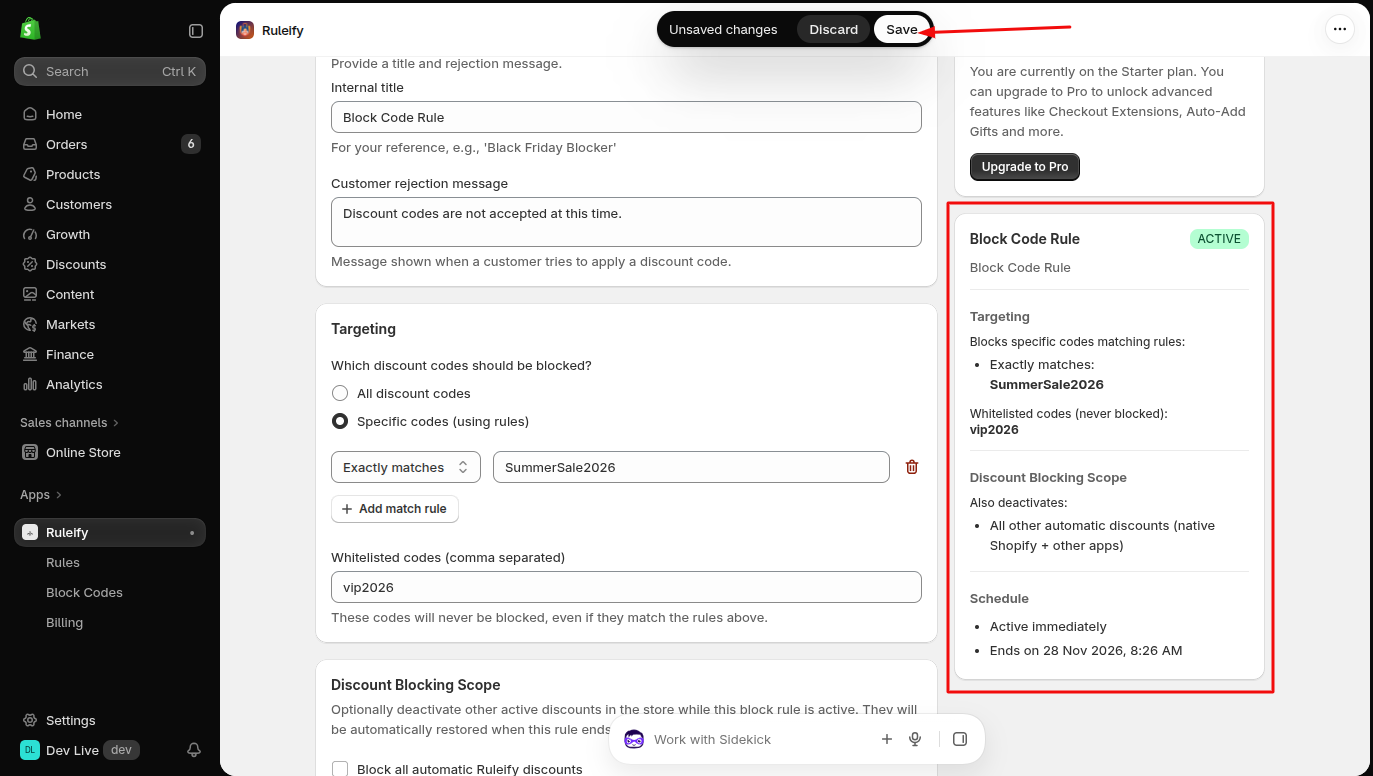
Review the preview panel on the right side of the page.
If everything looks correct, click the Save button to save your Block Codes Rule.