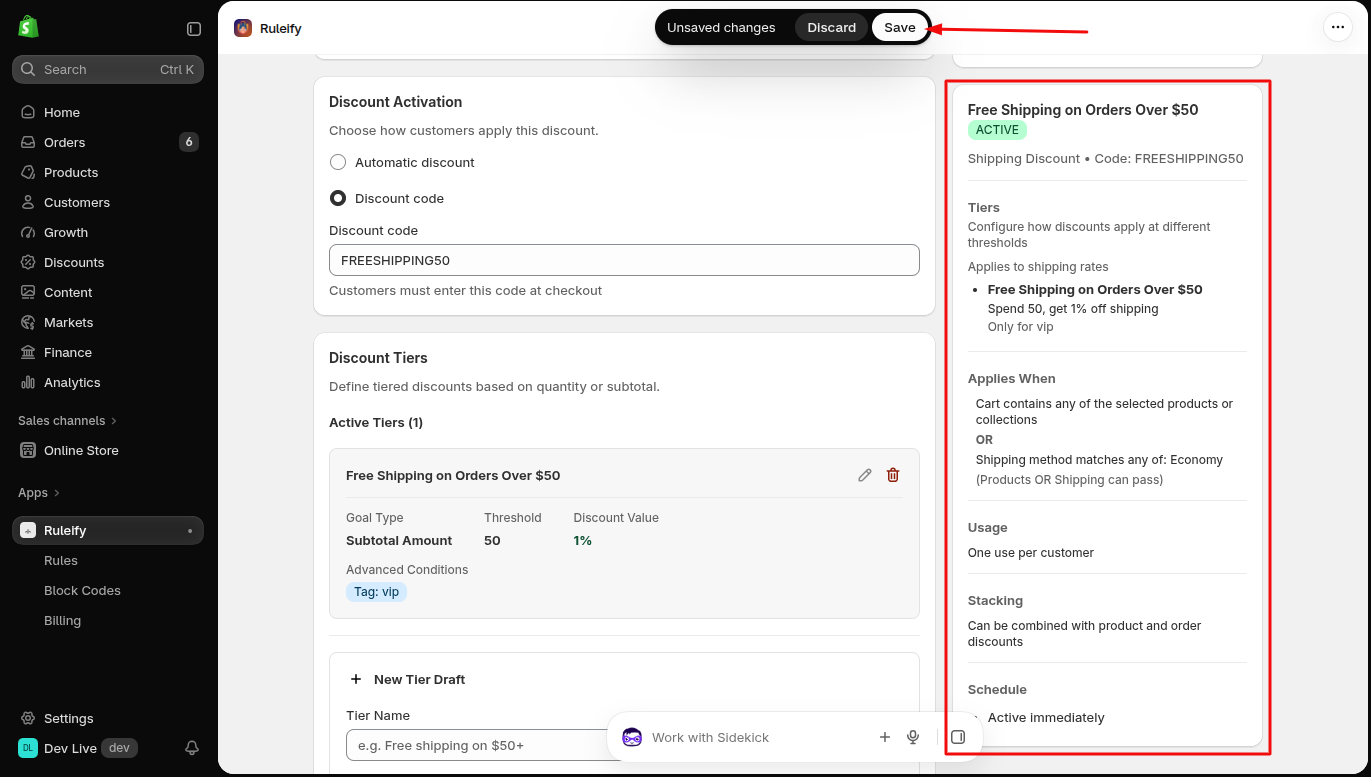
A Shipping Discount allows you to offer discounts on shipping costs. You can configure discounts based on the order subtotal, restrict eligibility by products, shipping methods, or customer details, and choose when the discount should be active.
Follow these steps to create a Shipping Discount in Ruleify.
Step 1: Open Shipping Discount
Open your Ruleify dashboard.
Under the Create Discount Rule section, click Shipping Discount to start setting up a new shipping discount.
Step 2: Enter the Discount Title
Under Basic Configuration, enter a title for your shipping discount.
Choose a title that helps you identify the discount easily.
Example: Free Shipping on Orders Over $1,000
Step 3: Choose the Discount Activation Method
Choose how customers will receive the shipping discount.
Automatic Discount: The discount is applied automatically when the customer meets the configured conditions.
Discount Code: Customers must enter a discount code at checkout to receive the discount.
If you select Discount Code, customers will need to enter the code at checkout to receive the shipping discount. Scroll down the page to find the Usage Limits section, where you can configure how many times the discount code can be used.
Step 4: Configure Discount Tiers
The Discount Tiers section lets you define the conditions customers must meet to receive a shipping discount and the discount amount they will receive.
4.1 Tier Name
Enter a name to identify the discount tier.
Example: Free Shipping on Orders Over $1,000
4.2 Goal Type
Choose the condition customers must meet to qualify for the shipping discount.
Subtotal (currency): The discount depends on the order subtotal.
Example: Select Subtotal (currency) if you want to offer a shipping discount when the eligible order subtotal reaches $1,000.
4.3 Threshold
Enter the minimum order subtotal required to qualify for the shipping discount.
Example: Enter 1000 to set the threshold at $1,000.
4.4 Discount Type
Choose how the shipping discount will be calculated.
Percentage off shipping: Reduces the shipping cost by a percentage.
Examples:
Enter 50 to offer 50% off the shipping cost.
Enter 100 to offer 100% off the shipping cost, which means free shipping when the discount applies.
4.5 Discount Value
Enter the percentage discount you want to offer on shipping.
Example: Enter 100 to offer free shipping on eligible orders.
4.6 Restrict This Tier to Specific Customer Tags
Enable this option if the shipping discount tier should be available only to customers with specific tags.
Example: If you want to offer free shipping only to VIP customers, enable this option and configure the required customer tag. click Add to apply the tag .
4.7 Save the Tier
After configuring all the required fields, click Save Tier to save your discount tier.
Step 5: Configure Eligibility Check
The Eligibility Check section defines the minimum conditions that must be met before Ruleify evaluates the discount rules.
For example, you can restrict the shipping discount to certain products, shipping methods, or customers.
5.1 Product Conditions
Select specific products or collections if the shipping discount should apply only when the required product conditions are met.
Example: If you want the shipping discount to apply only to orders containing products from a particular collection, select that collection.
If you do not select any products or collections, this section does not restrict eligibility to specific products.
5.2 Combine Product and Shipping Conditions
Choose how the product conditions and shipping method conditions should work together.
AND: Both conditions must be met.
OR: Either condition can be met.
Example: Suppose you select a T-shirt collection and a specific shipping method.
AND: The order must meet the product condition and use the selected shipping method.
OR: The order can qualify by meeting either condition.
Choose the option that matches your discount requirements.
5.3 Shipping Method Conditions
Choose which shipping methods can qualify for the discount.
Any shipping method: The discount can apply to any eligible shipping method.
Specific shipping methods: Restricts the discount to the shipping methods you select.
Example: If you want to offer a discount only on Standard Shipping, select Specific shipping methods and choose the Standard Shipping method.
5.4 Combine Shipping and Customer Tags
Choose how the shipping method conditions and customer tags should work together.
AND: Both conditions must be met.
OR: Either condition can be met.
Example: If you select Standard Shipping and enter the customer tag VIP:
AND: The customer must use Standard Shipping and have the VIP tag.
OR: The customer can qualify by meeting either condition.
Choose the option that matches your discount requirements.
5.5 Customer Tags
Enter customer tags if the shipping discount should be available only to customers with specific tags.click Add to apply the tag .
Example: Enter VIP and click Add Tags to apply the tag.
If you leave this field empty, no customer-tag restriction is applied from this field.
5.6 Customer Segments
Select customer segments if you want to target customers who belong to particular Shopify customer segments.
Example: Select your repeat-customer segment if you want to target customers who belong to that segment.
If you select multiple segments, a customer can match any one of the selected segments.
Step 6: Configure Usage Limits
The Usage Limits section lets you control how many times your shipping discount code can be used. After configuring the earlier sections, scroll down the page to find this section.
6.1 Limit to One Use per Customer
Enable this option if each customer should be allowed to use the discount code only once.
Example: If a customer uses the code FREESHIP for an order, they cannot use it again.
6.2 Limit Number of Times This Discount Can Be Used in Total
Enable this option if you want to set a maximum number of times the discount can be used by all customers combined.
Example: Set the limit to 100 to allow the discount code to be used up to 100 times in total.
You can enable either option or both, depending on your requirements. If you do not want to restrict usage through these settings, leave them disabled.
Step 7: Set the Discount Schedule
Use the Schedule section to configure when your shipping discount should become active and when it should end.
7.1 Start Date
Select the date when the shipping discount should become available.
7.2 Start Time
Select the time when the shipping discount should become available.
7.3 Set End Date
Enable Set End Date if the shipping discount should stop being available at a specific date and time.
Example: If you want to run a free-shipping promotion from November 1 to November 7, configure the appropriate start and end dates and times.
Step 8: Configure Stacking Control
The Stacking Control section lets you choose whether your shipping discount can be combined with other types of discounts.
Available options include:
Stack with Order Discounts: Allow the shipping discount to combine with eligible order discounts.
Stack with Product Discounts: Allow the shipping discount to combine with eligible product discounts.
Stack with Shipping Discounts: Allow the shipping discount to combine with other eligible shipping discounts.
Example: If you want customers to receive a product discount and a shipping discount on the same purchase, enable the relevant options.
Discount combinations are subject to the configured rules and Shopify's discount-combination requirements.
Step 9: Review and Save Your Discount
After configuring all the settings, review the preview panel on the right side of the page to see a summary of your shipping discount.
Check the discount title, activation method, tiers, eligibility conditions, usage limits, stacking settings, and schedule.
If everything looks correct, click Save to save your discount.