
Overview
This guide explains how to capture UTM parameters from your website visitors and automatically send them to GoHighLevel (GHL) as tags using the GHL Extension for Gravity Forms Pro Plugin.
Step 1: Install and Update the Plugin
Ensure that you have installed and activated the latest version of the GHL Extension for Gravity Forms Pro Plugin (v5.0.1).
Step 2: Access Global Settings
- Log in to your WordPress Dashboard.
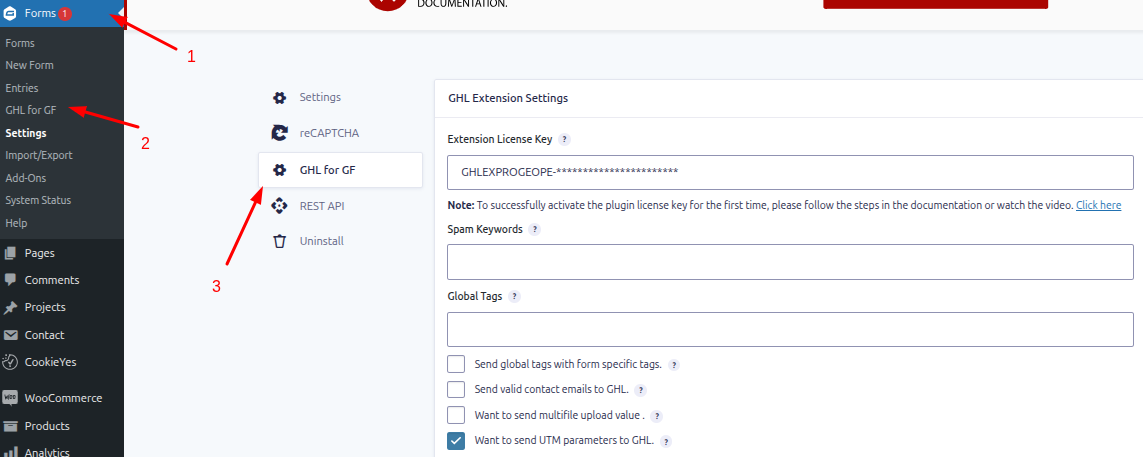
- Navigate to Forms → Settings → GHL for GF.
- This will open the plugin’s global settings page.
Step 3: Enable UTM Parameter Tracking
- Locate the option: "Want to send UTM parameters to GHL".
- Enable this option.
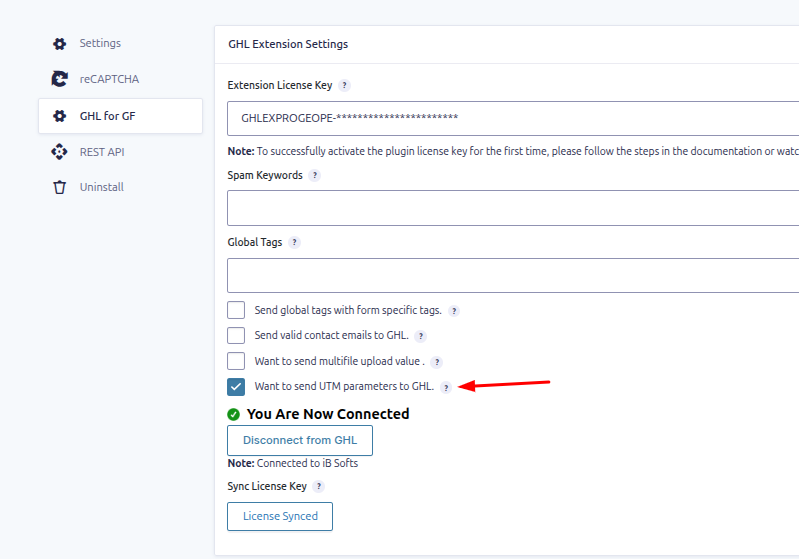
Once enabled, UTM parameters will automatically be captured and sent to GHL as tags.
Supported UTM Parameters
The plugin currently supports the following UTM parameters:
- utm_source
- utm_medium
- utm_campaign
- utm_content
- utm_term
Step 4: How It Works
When a user visits your website with UTM parameters in the URL (e.g., ?utm_source=google&utm_campaign=spring_sale):
- The plugin captures these parameters.
- On form submission, the values are automatically sent to GoHighLevel.
- Each parameter is added as a tag in GHL.
Example
If a user visits:
https://yourwebsite.com/?utm_source=facebook&utm_medium=ads&utm_campaign=offer2026
Then the following tags will be sent to GHL:
- utm_source: facebook
- utm_medium: ads
- utm_campaign: offer2026
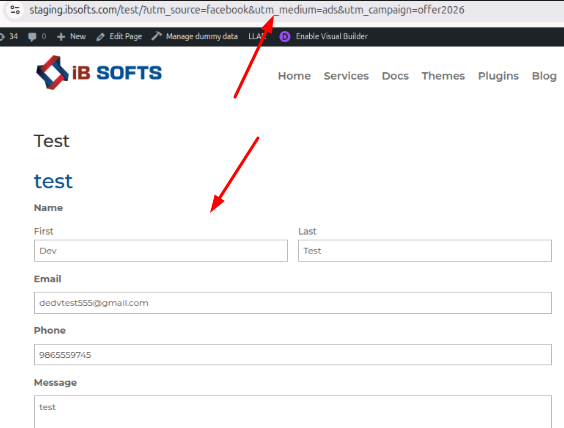
GHL Lead: