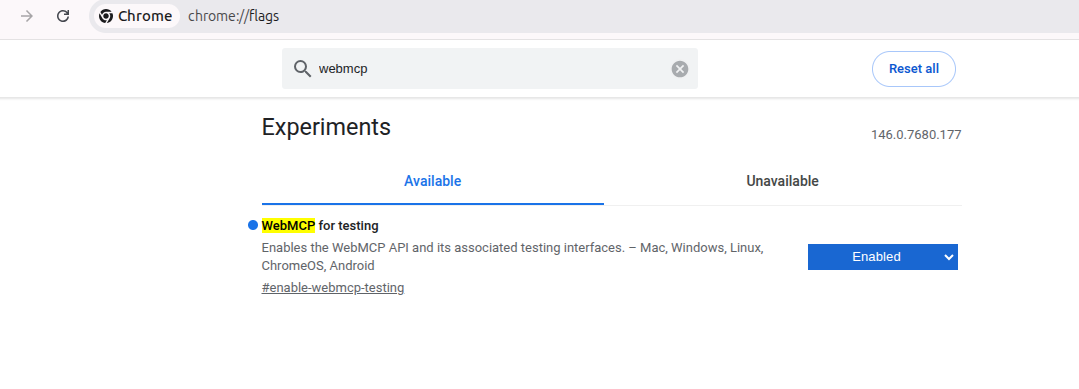
WebMCP Early Preview: Since WebMCP is currently in the development phase, Chrome has launched an Early Preview for developers who want to test these features and understand how they will work in the future.
Availability :
WebMCP is available behind a flag in Chrome 146. Learn more about Chrome flags.
Requirements:
To use WebMCP, you need:
- Chrome: Version 146.0.7672.0 or higher.
- Flags: The "WebMCP for testing" flag must be enabled.
Setup
- Open Chrome and navigate to chrome://flags/#enable-webmcp-testing
- Set the flag to Enabled.
- Relaunch Chrome to apply the changes.
Demo
Install the WebMCP Inspector Extension to see how WebMCP works. The extension lets you inspect registered functions, execute them manually or test them with an agent.
Get Gemini API Key: https://aistudio.google.com/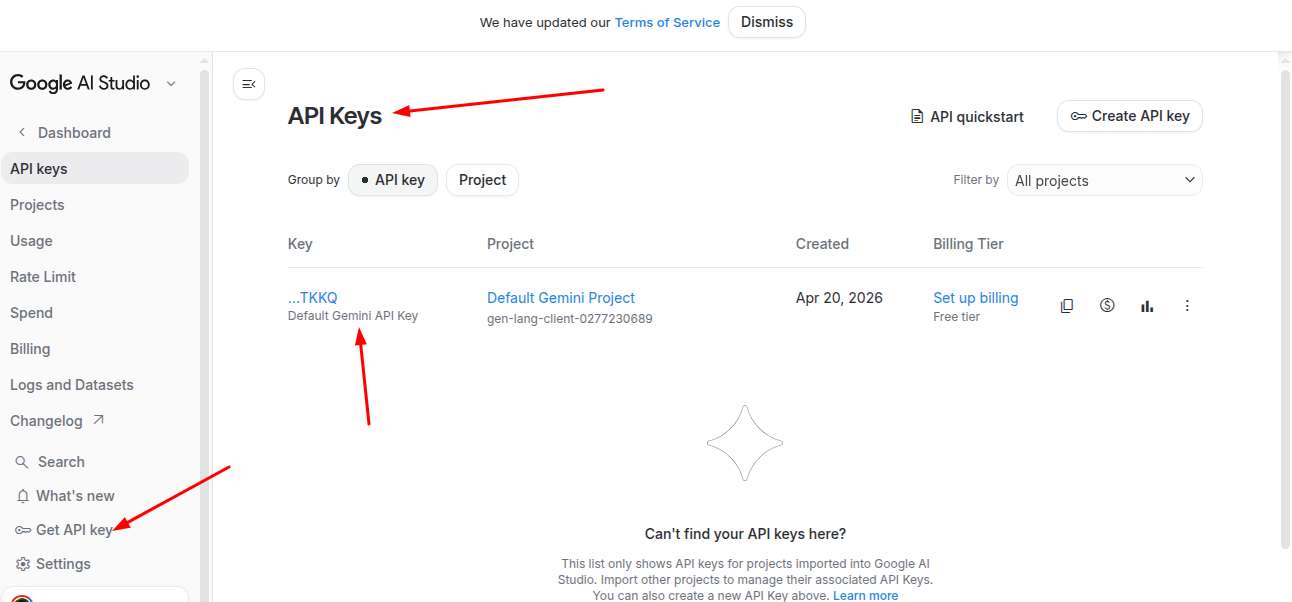
Update the API key on WebMCP Inspector Extension: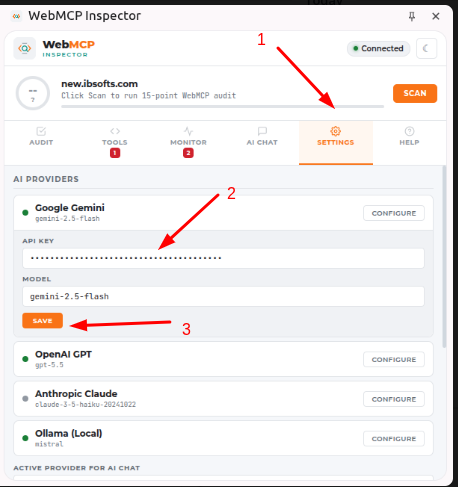
Next, scroll down and set the Active Provider for AI Chat dropdown value to Google Gemini.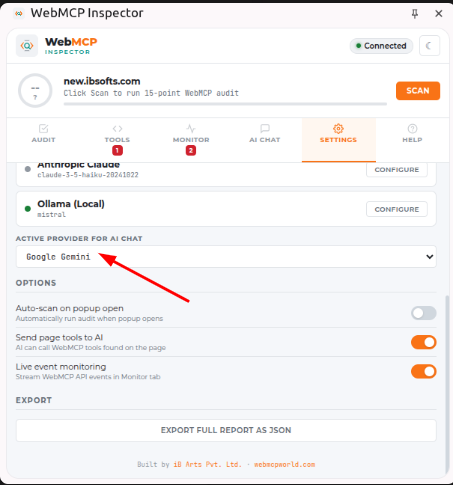
Now, visit the WordPress site and open the WebMCP Inspector extension. Go to the AI Chat tab and, in the User Prompt field, ask the AI agent about the forms available on the site or specify which form you want to submit. Based on your request, the AI agent will submit the form on your behalf.
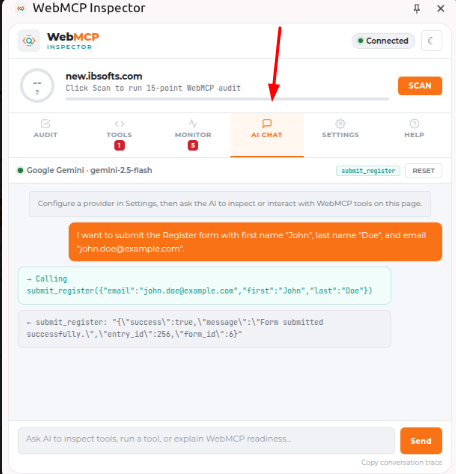
Gravity form Entries:

Plugin Log: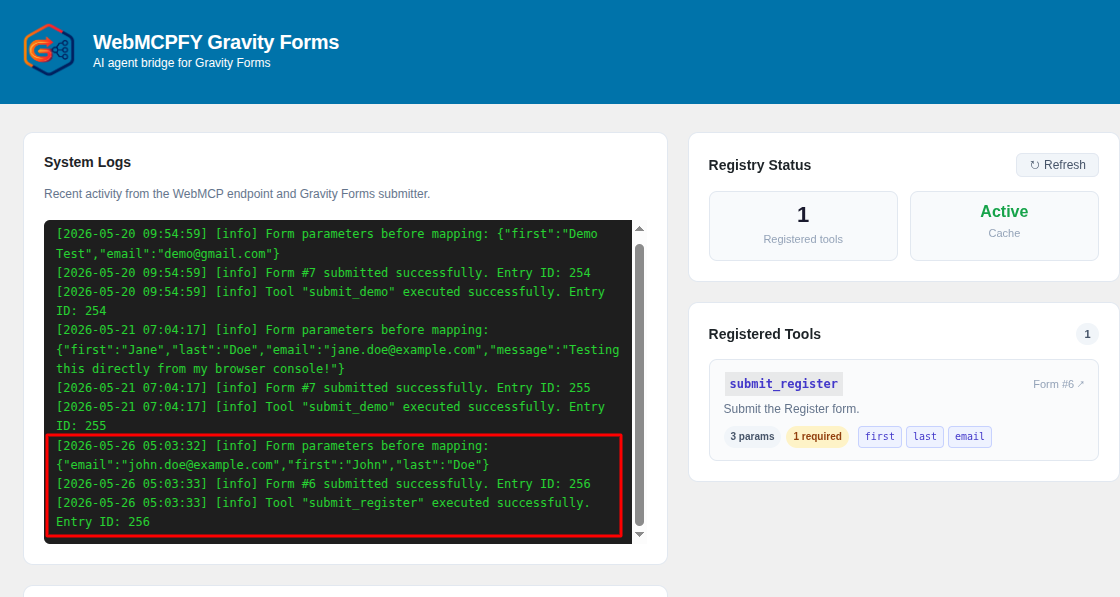
Frontend API(Without WebMCP Browsers):
1. Fetch the available tools
-> window.webmcpfyGravityFormsTools.list()
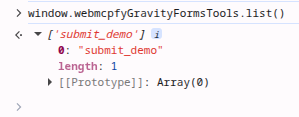
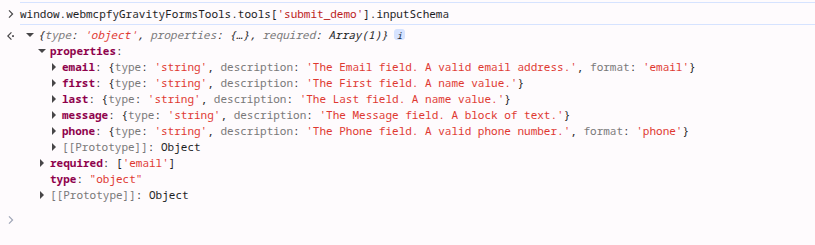
2. Check the parameters.
window.webmcpfyGravityFormsTools.tools[tool_name'].inputSchema
I.e.-> window.webmcpfyGravityFormsTools.tools['submit_demo'].inputSchema
3.Submit the form
window.webmcpfyGravityFormsTools.call('submit_demo', {
first: "Jane",
last: "Doe",
email: "jane.doe@example.com",
message: "Testing this directly from my browser console!"
}).then(response => {
console.log("Success! Here is the response: ", response);
}).catch(error => {
console.error("Oops, it failed. Error: ", error);
});
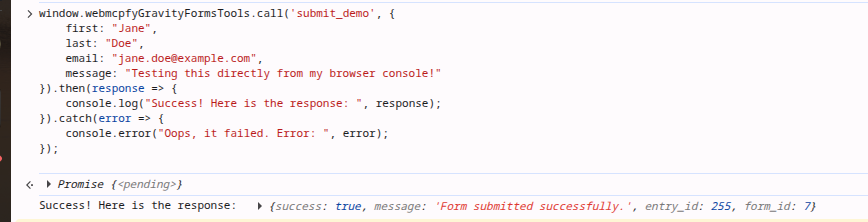
Output:
Gravity Form Entries:
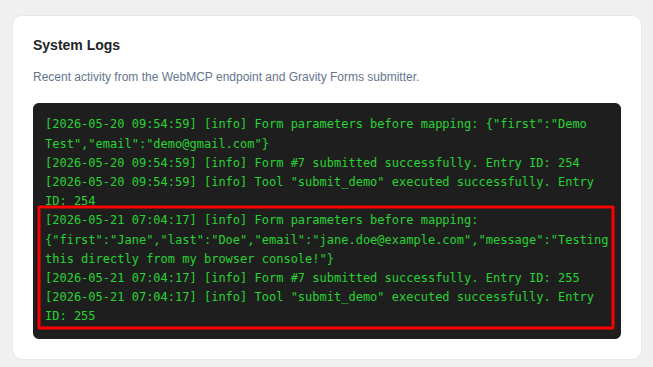
Plugin Log: